
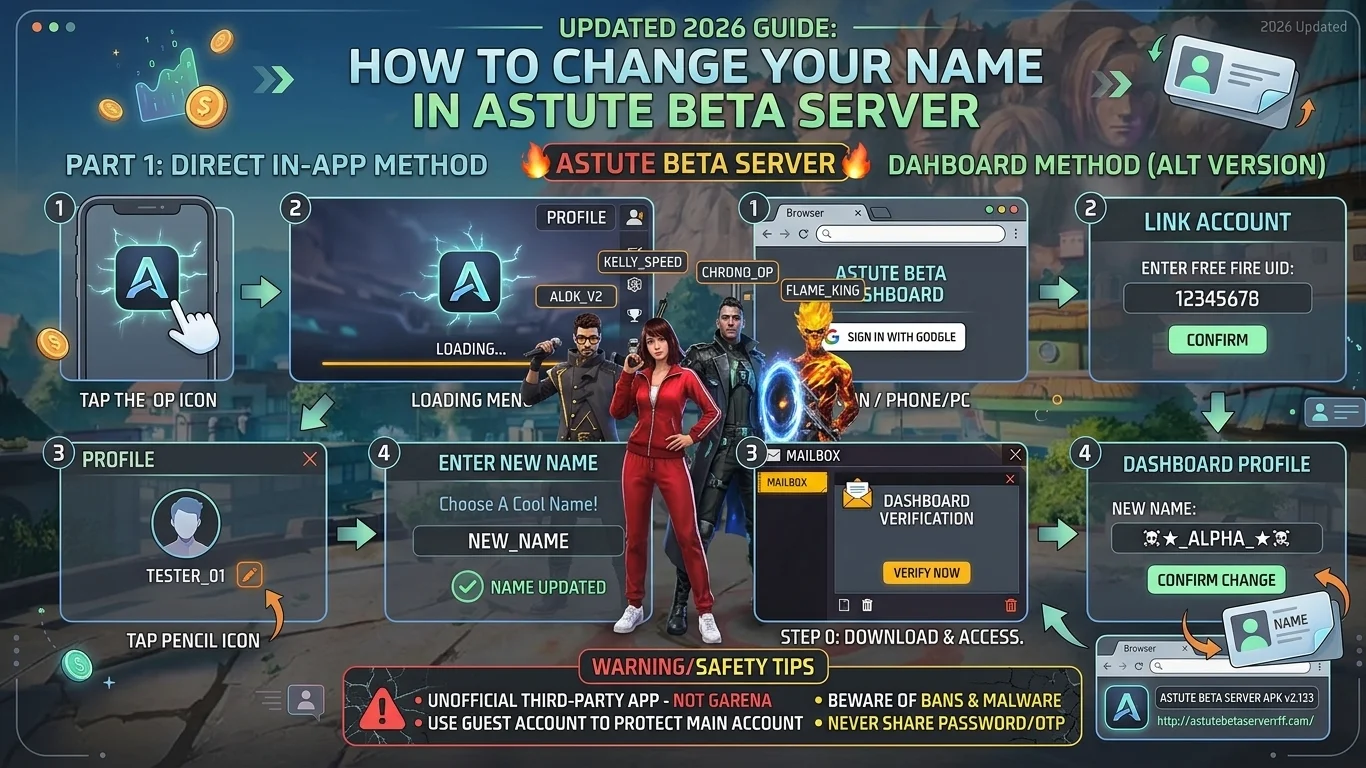
How to Change your Name in Astute Beta Server (Updated 2026 Guide)
Many players install the Astute Beta Server and then get stuck. They cannot find the name button. The screen looks different from regular Free Fire, so they think the feature is gone. It is not gone. The astute beta server name change is still possible, but the steps depend on your app version. In some builds, you change your name inside the profile. In other setups, you use a dashboard, a Google login, and your Free Fire UID. This guide covers both ways in simple steps. You will also learn the common errors, the fixes, and the safety rules. Astute Beta Server is an third-party tool, so you must be careful with your account. By the end, you will know what to tap, what to check, and what to avoid. Let’s begin.
What Is Astute Beta Server?
Astute Beta Server is a test version of Free Fire. Players use it to try new guns, skins, and features early. It is a third-party tool. It is not made by Garena. Garena has its own official program called the Advance Server. These two are not the same.
Can You Do an Astute Beta Server Name Change?
Yes, in most cases you can. But the method is not the same for every version. Some builds show a small pencil icon on the profile. Other setups use a web dashboard. Sometimes the option is locked on test accounts. If your screen looks different, follow what your own version shows.
What You Need Before You Start
Part 1: Change Your Name Inside the App (Direct Method)
This is the fastest way. Try this first.
Some sources say name changes are free and unlimited in the beta. This is not true for every build. In regular Free Fire, a rename costs diamonds or needs a rename card.
If you do not see the pencil icon, move to Part 2.
Part 2: Change Your Name Using the Dashboard Method
Some setups use a dashboard to change profile details. Follow these steps in order.
Step 1: Open the dashboard. Open the dashboard link for your setup in Chrome. Only use a link from a source you trust. Wait for the page to load fully.
Step 2: Sign in with Google. Pick your Gmail account. Read any permission request before you accept it. Continue only if you trust the service.
Step 3: Enter your UID. Copy your Free Fire UID and paste it in the box. Check every number. A wrong UID can break the process. Then tap Confirm.
Step 4: Check your mailbox. Open the Free Fire in-game mailbox. Look for the verification message. Tap the verification option. Then return to the dashboard.
Step 5: Open your profile. If the verification worked, your profile details will appear. You may see name, level, or region options.
Step 6: Type your new name. Find the name field. Enter your new name. Avoid heavy symbols that the system may reject.
Step 7: Confirm the change. Tap the Confirm button. Do not refresh the page. Do not close the browser. Wait until it finishes.
Step 8: Start the proxy setup. If your setup needs a proxy server, start it now. Then open the game through the required setup. Your new name should appear on your profile.
How to Check if Your Name Changed
Open the game and go to your profile. Look at the name shown there. If you still see the old name, wait a minute. Close the app. Open it again and check once more.
Why Is Your Name Not Changing?
Wrong UID. One wrong digit can fail the whole process. Enter it again.
Verification not done. You must complete the mailbox step. Without it, the dashboard cannot continue.
Server is busy. This is very common. Close the app and try again after one minute.
Outdated version. Older builds may not show the option. Update to the latest build from a trusted source.
Proxy not working. If you use a proxy setup, make sure it is running. Do not keep changing settings if the server is not responding.
Guest account resets. Guest names can disappear after a restart. If this keeps happening, log in with a Free Fire or Facebook account. Remember the safety advice below.
Tips for Choosing a Good Name
Will the New Name Show in Main Free Fire?
No. The beta server is separate from the main game. Your new name usually shows only inside the beta server. Do not expect it to change your main account.
Important Safety Tips
Frequently Asked Questions
How do I do an astute beta server name change?
Tap your profile, then the pencil icon, type a new name, and confirm. If there is no icon, use the dashboard method in Part 2.
Is the name change free?
Some builds allow free changes. Others may ask for a rename card. It depends on your version.
Do I need my UID?
Yes, for the dashboard method. Enter it carefully.
Can I use special symbols?
Yes, simple ones. Heavy symbols may not work.
Why does the name not save?
The server may be busy. Close the app and try again after a minute.
Is Astute Beta Server safe?
It is unofficial. There is a risk of bans and malware. Use a guest account and trusted files.
Final Words
The astute beta server name change is easy once you know your version. First, try the pencil icon in your profile. If it is missing, use the dashboard method. Check your UID, finish the mailbox step, and restart the app if the name does not update. Always protect your main account. Enjoy testing new names and features.